Sunday, April 7, 2013

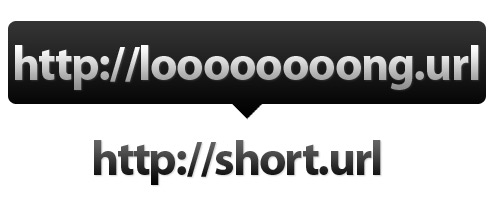
URL Shortener


Setting: Teacher in the Computer Lab


Student A: Mr. Gibson this website isn't working!
Mr. Gibson: Did you type it in correctly? 
Student A: Yes, I tried everything!
Mr. Gibson: You typed in .con not .com. Try it again.  
Student B: Mr. Gibson this website isn't working!
Mr. Gibson: Argh!


URL Shortener in the Classroom


Are you tired of watching students mistype long web addresses?  Shorten them with a URL shortener.  I feel like I'm writing the intro to an infomercial.  Here is an example of a URL Shortener's benefits.  Take a look at this long Google Docs URL: 
Even your most tech-savvy student would struggle with this Google Docs web address.  Now try the next two shortened web addresses (*an additional resource can be found by clicking either one of the following links):

Short List of Shorteners

Additional Benefit and One Warning


There are some URL shorteners that allow for tracking.  For instance, if you gave parents a shortened URL at parent teacher conferences and wanted to check how many parents actually accessed the link, it could be done with Owl.ly.  

I will warn that some shorteners may be blocked by your web-filter; however, I know TinyURL, goo.gl, and Owl.ly work.  Many other URL shorteners were blocked by my school districts web-filter, but don't let that discredit the idea behind using shorteners.  Try it the next time your students have to go to a long and overly complicated web address.

For another alternative similar to using a shortener, check out my post on QR codes.  

Tuesday, March 26, 2013

Web Searching

I created this slideshow to introduce fifth grade students to effective web search tips.  At the end of the brief presentation, I had students practice what they learned with a few Google-A-Day challenges.  I gave students a specified time-limit and a post-it-note.  They were asked to search and show (not tell) me the answer they wrote on the post-it-note.  After the time limit was up, students answers were collected and posted on the board to discuss.  We then reviewed what students did to get the fastest and most accurate search results.  The students practiced searching two more Google-A-Day challenges and  again we reflected on their techniques and search results.  Last, the students applied the search tips and techniques with their individualized research projects.


Wednesday, January 2, 2013

Digital Citizenship Pledge

For the New Year, integrate multiple digital citizenship lessons throughout the remainder of the year.  Go to the Common Sense Media and have students take the Digital Citizenship Pledge.  Here is video from a Maine teacher taking the pledge with his students.


This was a basic video used to film the students reciting the pledge and signing the poster.  How else can we record students taking the pledge and how can we continuously remind students about these important tips for interacting online?  Does it have to be presented with a video?  Can we use other web-based media?  Can we make the pledge more student-centered?  However the message is conveyed, make sure students understand and uphold the major tenets associated with Digital Citizenship.

Resources

Download the Common Sense Media materials and use the poster in your class.  Also, refer to the various resources listed in within my Digital Citizenship page.

ToonThat-Storytelling App


ToonThat- This is app has the potential to offer examples of grammatical features, literary elements, or writing tips.  Using a comic strip provides students with a visual storyline that works in tandem with the instructional concept.  It's a quick and easy way to provide students with examples that illustrate a certain writing concept.  I recommend using it to assist instruction, but students could also use this app to create short stories or demonstrate what they have learned.  With up to sixteen panels, ToonThat is a nice free app to use within the classroom. 

Here are two examples of ToonThat comic strips that I created. 


Wednesday, December 19, 2012

Splashtop 2

I have been asked in the past, "how did you control your computer with the iPad?"  While working with or teaching classes, I have used my iPad to scroll through presentations or click/open certain applications on the MacBook.  To do this, there are several apps that allow you to control your MacBook's desktop from your iPad or even iPhone.


But, Splashtop seems to be the app that provides the biggest bang for your buck.  Right now, the holiday season has caused the Splashtop app to come down in price.  The current price is only $2.99.  Its regular price is $19.99, and I suggest picking it up at this lower price.  To allow this app to work with your MacBook, the Splashtop Remote Desktop would also need to be downloaded and setup on your computer.  As a warning, though the initial setup isn't too difficult, it can be tedious.  Nevertheless, the Splashtop app and remote desktop is worth $3 and the setup time.  This app combo offers an easy way to unleash teachers from the front of the room.